

Organization Setup
Configure and manage your enterprise organization in nRouter. Set up workspace resources, team member access, role permissions, budgets, and billing limits.
Your nRouter organization is the top-level tenancy boundary that owns all workspace resources: teams, virtual API keys, credit balances, guardrails, budget limits, and audit logs. Everything provisioned within nRouter belongs to your organization, with strict tenant isolation enforced at the API gateway layer.
Organization Provisioning
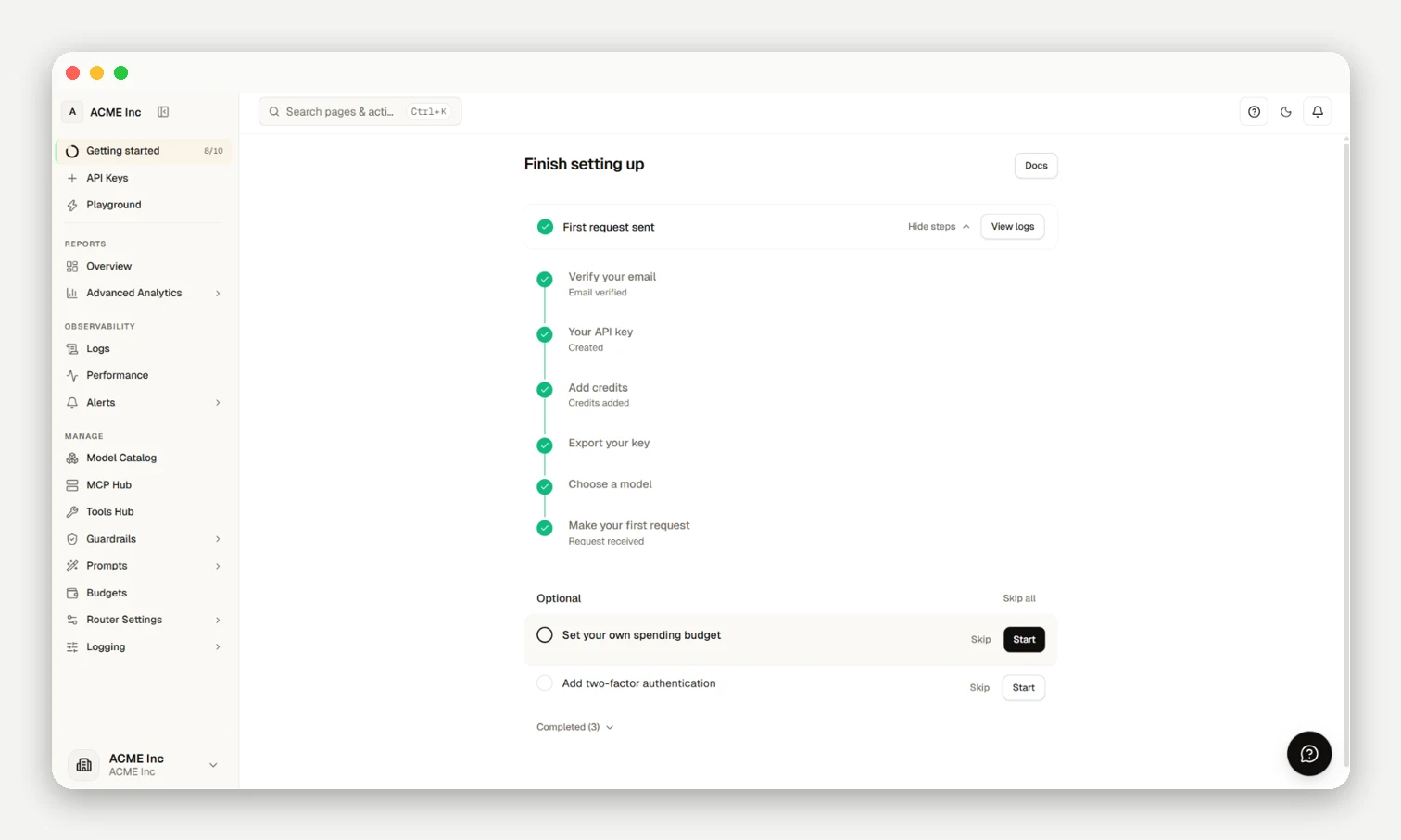
- Registration: Create your workspace at
/signup. - Prepaid Funding: Fund Pay as you go credits via Stripe Checkout (0% platform fee).
- Verification: Verify email in Getting Started (
/[organization]/getting-started) to mint your starterDefault key(sk-nrouter-*). - Invitations: Invite team members under People → Members (
/[organization]/people/members).
Organization Settings
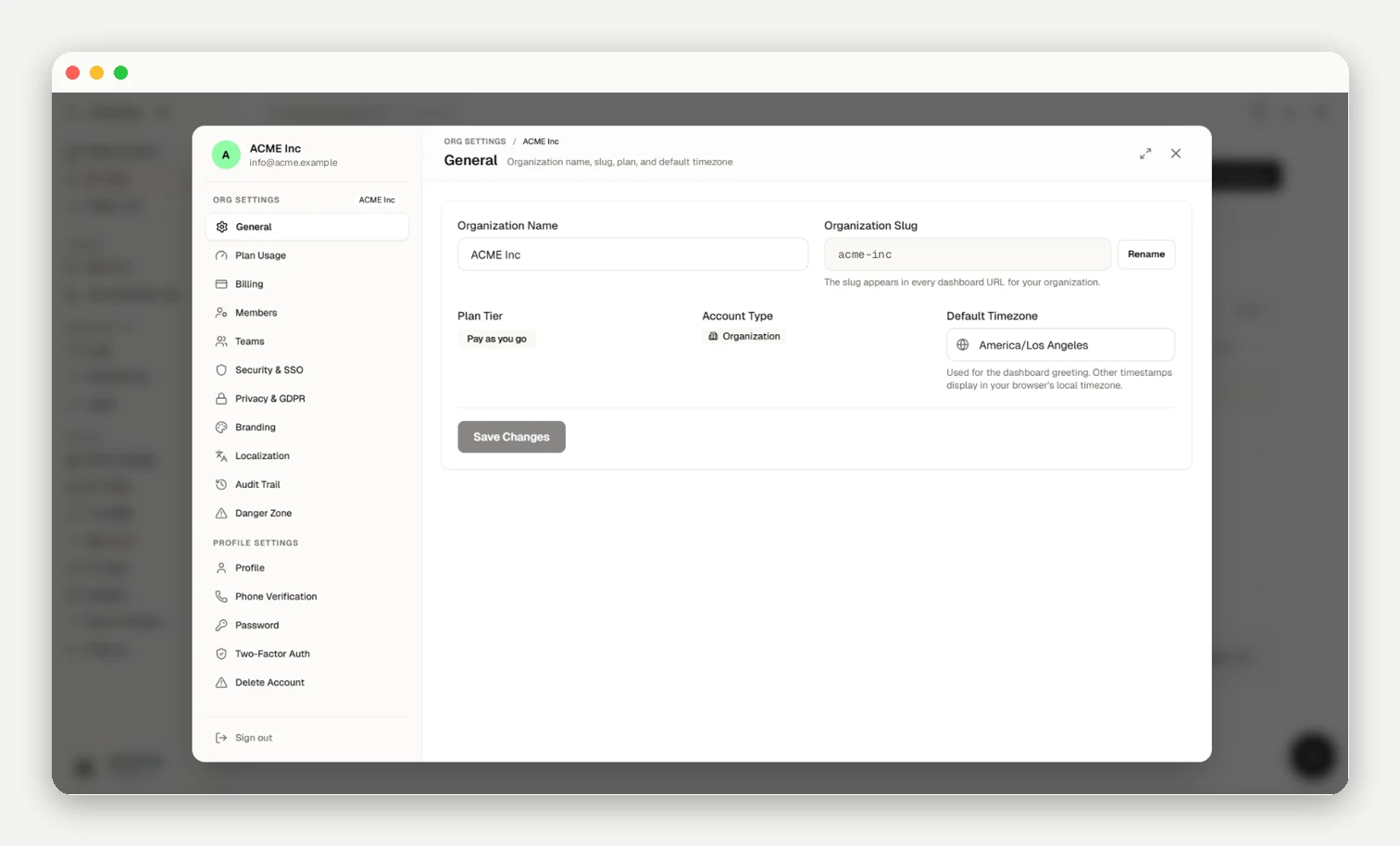
Access organization settings via the pinned-bottom account menu in the sidebar (SidebarAccountMenu), which opens AccountSettingsModal presenting Org Settings directly above Profile Settings (there is no topbar profile menu).
General Information
| Setting | Description |
|---|---|
| Organization Name | Display name in headers, invoices, and emails |
| Organization Slug | Unique URL identifier across dashboard routes (/[organization]/*) |
| Organization Logo | Brand image in dashboard header |
Data Policies
| Policy | Description |
|---|---|
| Data Retention | Log and metrics storage retention window |
| Data Processing | Opt-in telemetry controls |
| Region | Geographic data processing preference |
Resource Architecture
- Shared Pool: Organization credits fund requests across all teams and virtual keys at list price with 0% fees.
- Hierarchical Governance: Virtual keys and budgets cascade across organization, team, and key levels.
- Multi-Tenant Isolation: The gateway resolves tenancy from authenticated keys and never echoes tenant IDs over the wire; log
x-nr-request-idto correlate requests with dashboard logs (/[organization]/logs). - Single Tenancy: Accounts bind strictly to one organization without in-session workspace switching.
- Danger Zone (
/[organization]/settings/danger-zone): Deleting an organization permanently purges all assets and requires typing the organization slug (Owner only).
Frequently asked questions
Who can change organization settings?
Owners and Org Admins edit general settings and data policies, while slug changes, billing, and workspace deletion are restricted to Owners.
Where do I find my organization ID, and where does it show up?
Your organization ID appears on Settings; correlate API calls by logging x-nr-request-id and inspecting Observability or Analytics.
If I rename my organization or change the slug, do I need to update my code?
No, renaming only updates dashboard URLs and display labels without affecting API keys or integration endpoints.
What happens when I delete my organization?
Deletion permanently purges all keys, teams, credits, and logs after confirmation in the Settings danger zone.
Next Steps
- Team Management — Add members and configure roles
- Budget Controls — Set spending limits
- Authentication — Create and manage API keys
- Quick Start — Make your first API call